2021 Dell Laptops Deployment /Outlook Config
If you choose to use the Desktop Outlook (instead of the Office365 web interface) for your emails, do the followings:
1.
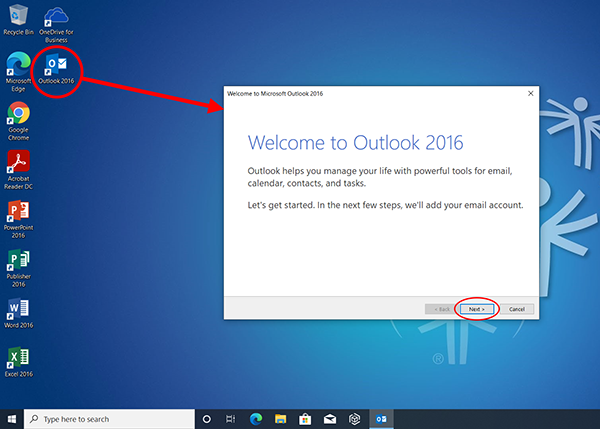
Make sure you are connect to the Internet. Click the Outlook 2016 button on the Windows desktop. After the Welcome window appears, click [Next] to continue.
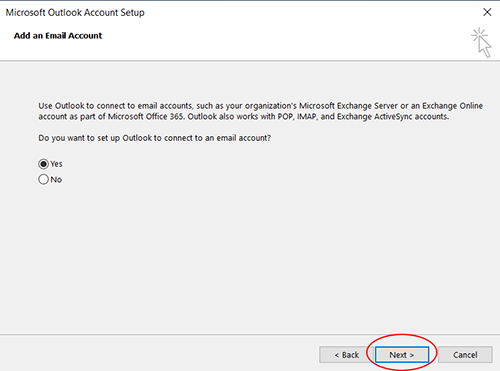
2. On the next "Add an Email Account" window, click [Next] to continue
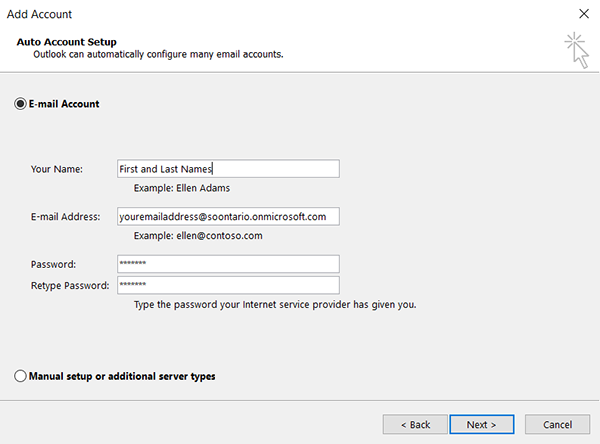
3. On the next "Add Account" window, enter the following:
- Your full name
- E-mail address using the domain of soontario.onmicrosoft.com instead of specialolympicsontario.com, e.g. johnd@soontario.onmicrosoft.com.
- Your password (twice)
- Then click [Next]
4. The next window will apears like below for a short while ...
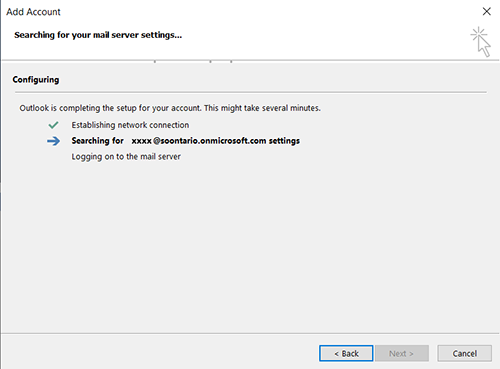
*If this process gives you an error message, you can either retry the process or shut down Windows and retry from start.
5. Then the next window should appear. On this window, enter your actual SOO email address, your password. Make sure you check the [Remember my credentials] box. Then click [OK].
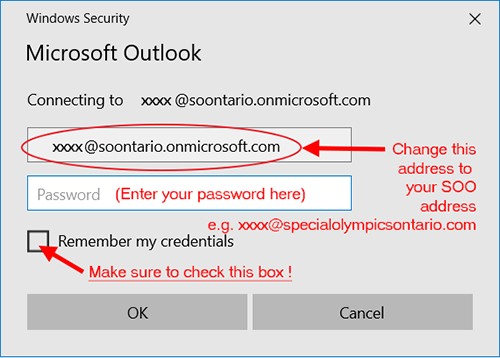
Wait for it to authenticate with the Office365 server. It might take a few seconds to a couple of minutes. After it completes, Outlook is now set up for your SOO emails. You should allow some time for it to sync all your email content with the server.
*If this process gives you an error message, check that all the info entered are correct and retry. You may also shut down Windows and restart from start.