
Microsoft Office 2016 Program Repair
Symptoms: If any of your Microsoft Office 2016 programs, e.g. Words, Excel, etc is experiencing operation errors, such as crashes, freezes, or abnormal responses. Follow the steps below to diagnose and apply repair if necessary.
A. Check if there is any pending updates to Office 2016:
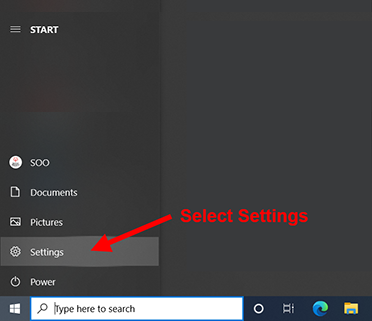
1. Click the Windows [Start] button (lower left) and select [Settings]:
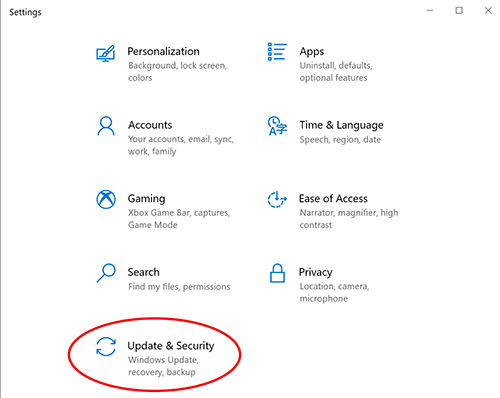
2. In the Settings window, scroll down to the bottom select [Update & Security]:
3. On the right hand side of the next window, See if there is any Windows and/or Microsoft Office 2016 program updates that are pending download or install. If there is, proceed to finish with the updates. Note: some Windows updates may require you to restart multiple times after install. To make sure that you're up to date, you can click on [Check for updates] to make sure:
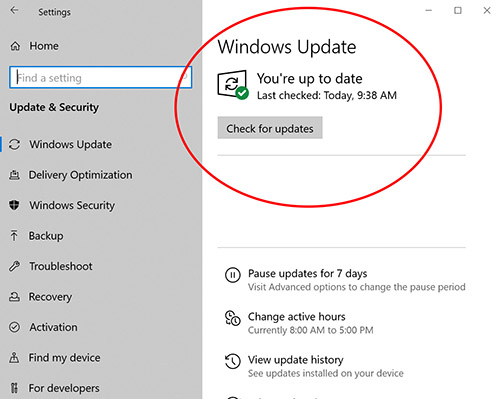
If your Office program continues to have error after updates are complete, proceed to step B.
B. Repair Microsoft Office 2016 program:
1. Click the Windows [Start] button (lower left) and select [Settings]:
2. In the next pop up window, select [Apps]:
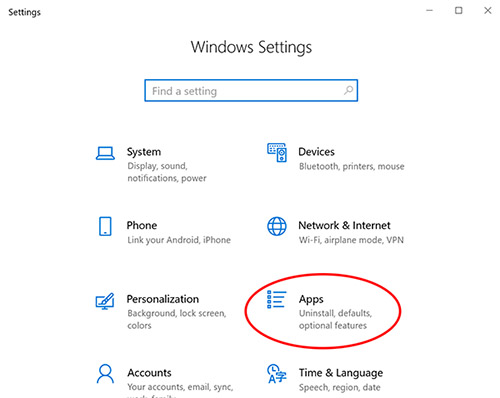
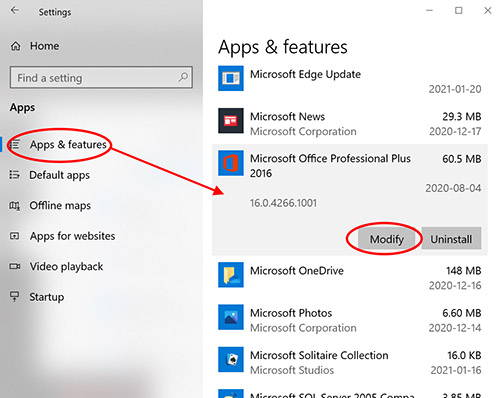
3. In the next pop up window, on the right hand side, scroll down to [Microsoft Office Professional Plus 2016], click to expand the item. Then click [Modify]:
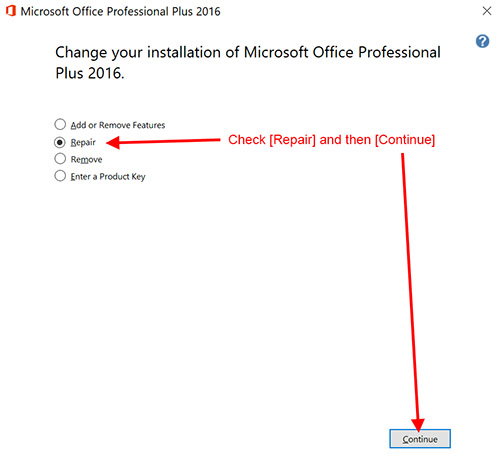
4. In the next pop up window, check the [Repair] button and then click on [Continue]:
The process may take some time to complete. Wait for it to finish. You may or may not need to restart Windows.